Review and apply record changes
Check original messages, edit proposed values and approve, reject or postpone a change.
The Questions page at the top of the screen contains record updates and contact suggestions. This page covers record updates. Open Reply drafts for email drafts, or see contact suggestions for proposed follow-ups.
Check the proposed change
Read the customer, original statement and proposed values. For example, “we will order next month if the budget is approved” does not establish a confirmed order.
Check whether the action button applies a record change or sends a message. Approve and apply updates a record; Approve and send sends email.
Find a proposal
The top of the list shows the pending count. Open Group & filter to group by conversation or customer, leave proposals ungrouped, or filter them.
Review stats shows reviewed counts, approval rates and correction trends. The unchanged-approval rate shows how often proposals were accepted without edits; rejection reasons can help identify recurring problems.
Read the card
- Evidence status: Labels such as 1 source show how many sources you can open and check. They are not a guarantee or a probability that the proposal is correct.
- Changed values: Before-and-after values show what will change. Unchanged fields are marked No change. Changes that need judgment, such as amounts, dates and deal stages, show a line from the original conversation up front.
- Original text: Open View source to check who said what and when. Open the original message opens the source in Slack or email. How the AI classified the message is under Processing details.
- Uncertain statements: Phrases such as “probably next month” may appear marked (not saved as a value) instead of being written to a field.
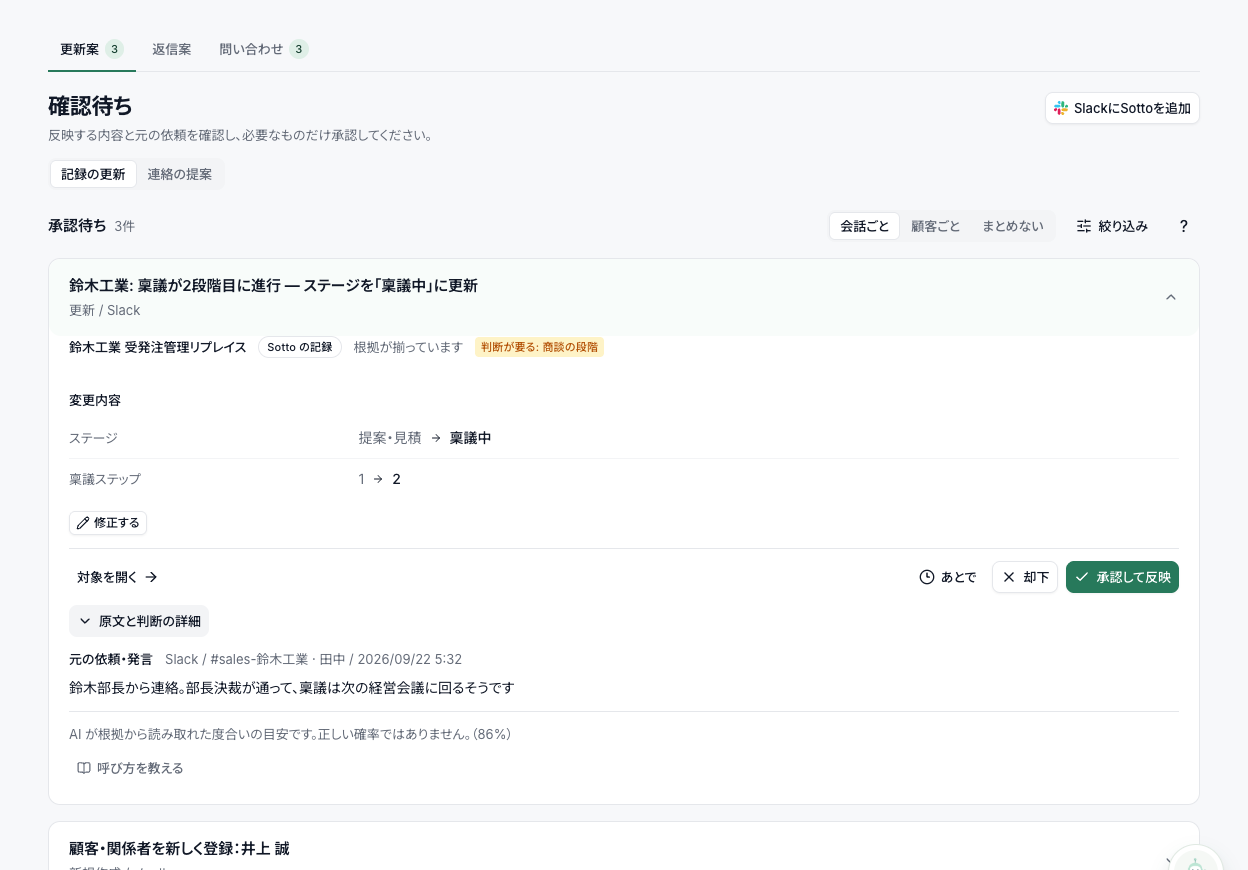
Approve, reject, edit or postpone
- Approve and apply: Applies the record update. An email draft instead uses Approve and send and sends the message.
- Reject: Does not apply the proposal. You can provide a reason or skip that question.
- Edit: Edit values before approving. Required fields, numeric values and at least one retained field are validated.
- Later: Postpone until tomorrow or one week later. Postponed items are listed under N snoozed and can be returned with Move back to awaiting review.
Irreversible changes and dependencies
An irreversible proposal, such as deleting a field with its values and relationships, requires the explicit button Run it, knowing it can't be undone. A single-key shortcut cannot execute it.
Some proposals require another proposal to be approved first. Identical proposals from the same statement are grouped; reviewing the displayed card applies that decision to its duplicates.
Keyboard shortcuts
| Key | Action |
|---|---|
| J / K | Next / previous card |
| A | Approve |
| X | Reject |
The letter keys (J, K, A, X) only work while the card list has focus, so typing or voice input elsewhere doesn't trigger them.
Rechecked proposals
Sotto rechecks proposals that remain pending. Still-valid proposals are retained. Proposals made obsolete by new information are removed from the pending view and can be restored when needed.
See automatic processing for how automatic imports, and work that goes ahead automatically when its owner has delegated it, differ from this review flow.